First lets explain how NetSuite schema support and deprecation works. I’m not going to quote this, but NetSuite explains it in a way that sounds pretty complicated and I don’t think is completely accurate. You can find this explanation here.
I prefer to explain it in simpler terms. On the 7th year, a schema is hard deprecated and you can no longer use it. Example, when the UI is incremented to 2025.1, 2018.1 will no longer be usable.
- The reason that I disagreed with NetSuite’s explanation is that it really seemed to directly state the schema’s introduction into general availability is what triggers the line in the sand to move, but I’m very certain that this isn’t true. When the UI is incremented, that is what triggers the line in the sand to move. The same version of SOAP schema will usually not be generally available until quite awhile after the UI is incremented and therefore has nothing to do with the deprecation dates.
- Technically NetSuite only supports the latest 6 versions (or 3 years). This is functionally irrelevant for most customers. You could use this as a reason to increment your connector every 3 years instead of every 6, but my experience has shown there is very little reason to do so for most customers.
Second, lets discuss how to increment your NetSuite connection in Boomi whenever your existing schema is deprecated, or better yet, before it is deprecated. Lets talk about this as if we are updating a single process, because you probably should do this one process at a time anyway. Many people will tell you and in fact it is the standard accepted belief that you should go to each NetSuite operation in that process and refresh it, using an incremented connector. While this may be the right way for the operation, it’s the wrong way for the process, the maps, your time and pretty much everything else. Unless you really know better than I or you just refuse to believe me, don’t do it this way. You will break more things this way and even if you break nothing it will take you way longer.
Follow these steps to do it the safest and fastest way. I’ll explain why at the end.
- Go to your connections and increment them. You may need to do this in extensions (I don’t extend, or at least I don’t change, this part because it’s impossible to change this and have it work without a deployment anyway). In my case, I will update both my connections. (the Production one exists for imports only)

- Open one NetSuite xml profile at a time, go to the ‘Types’ tab and locate the 3 or 4 places where the schema number is noted and increment them to match your update connections. Don’t forget to save.

- Once you have done this for all profiles in the first process, deploy that process and test it. This will help you make sure that you have this down before you waste time doing it on more than one process.
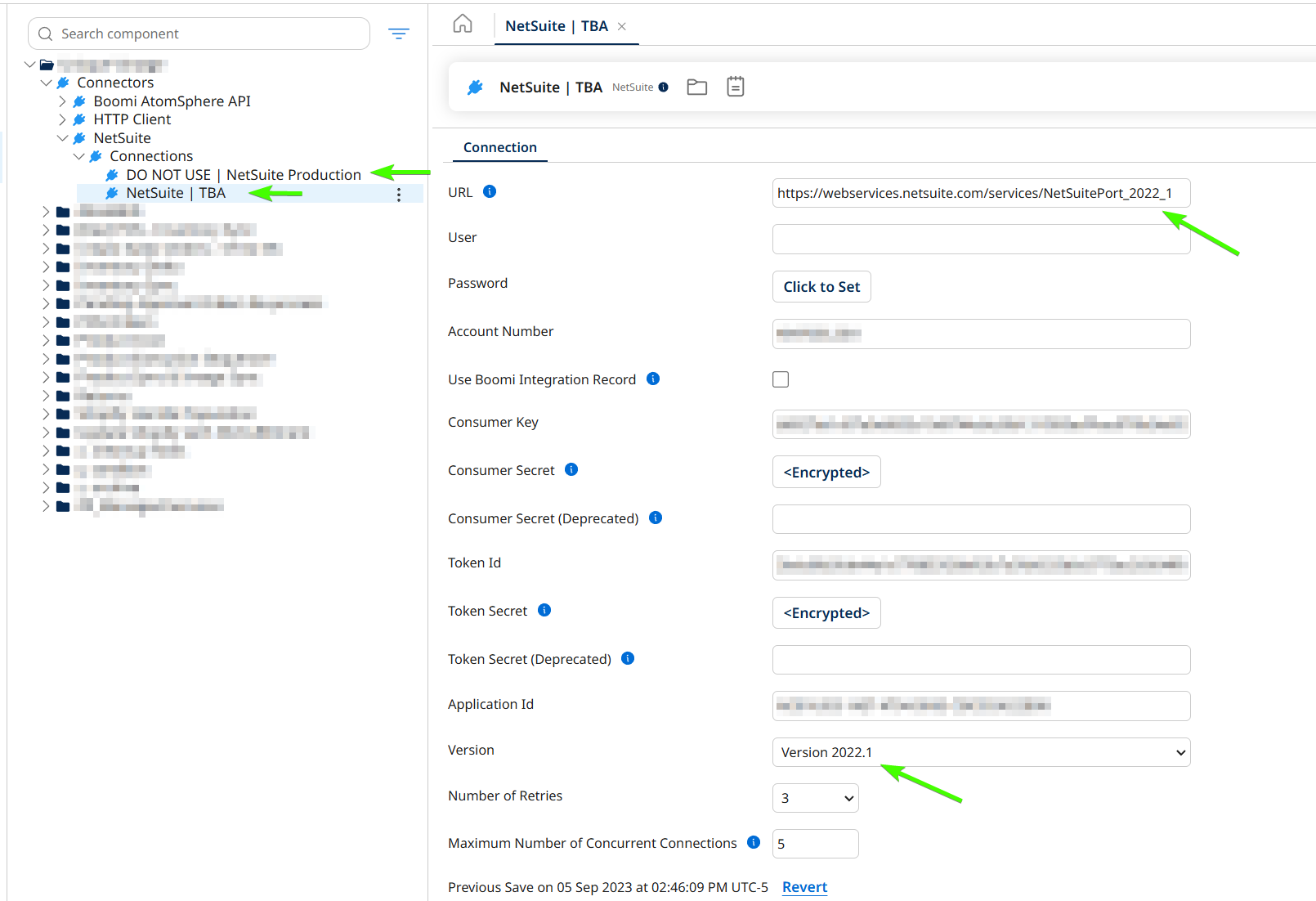
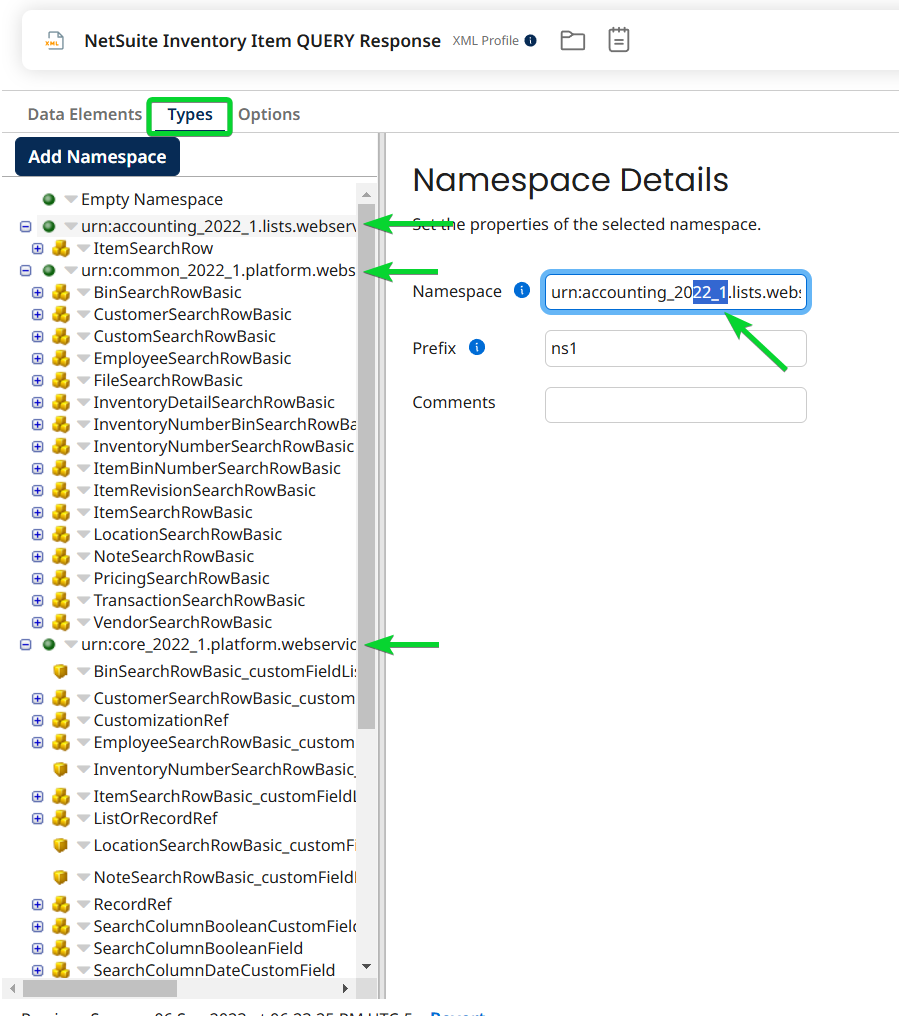
This is still tedious. There’s no way around that. It’s actually faster than re-importing from the operation though. Try doing one that way if you don’t believe me. It’s also way safer, because you aren’t making a significant change to the profiles. Therefore you are very unlikely to break a mapping. Yes something can still go wrong, but I wouldn’t expect to run into more than one or two problems for a whole account. I have done this on multiple accounts and the number of issues that I’ve run into have been 1 or 2 per account. If something goes wrong, you will get an error. This is what we want. With the alternate method, if something goes wrong, you could lose a mapping. This is not guaranteed to throw an error and therefore is much more dangerous.
Recent Comments